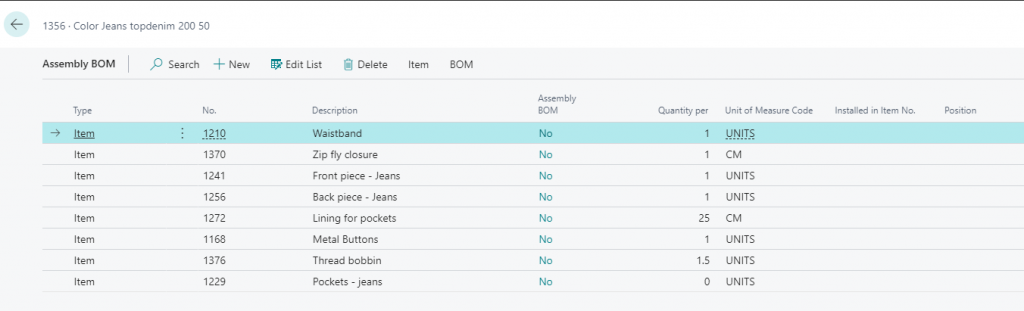
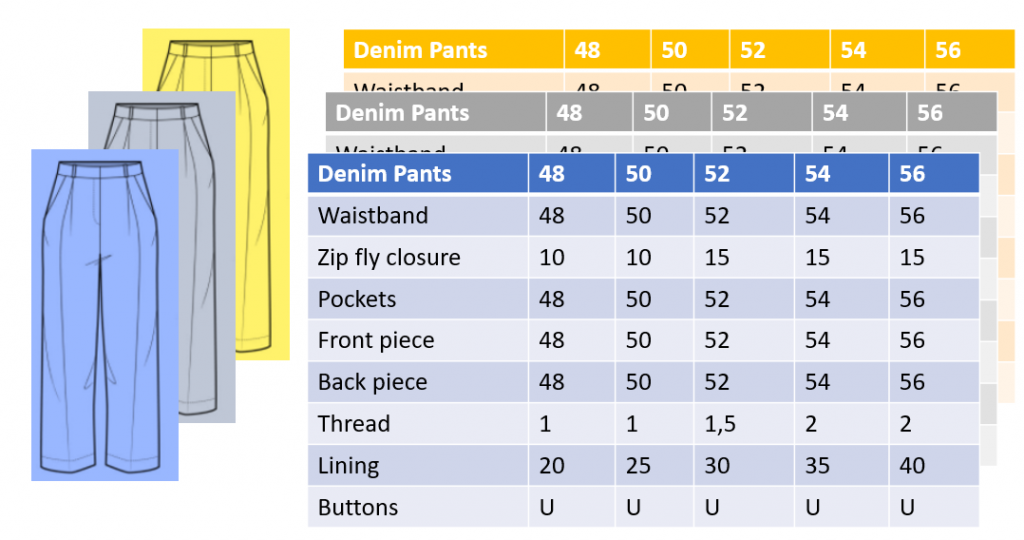
Let’s do a simplified example for the creation of a BOM for jeans.
Colors: Yellow, grey, and blue
Sizes 48, 50, 52, 54, 56
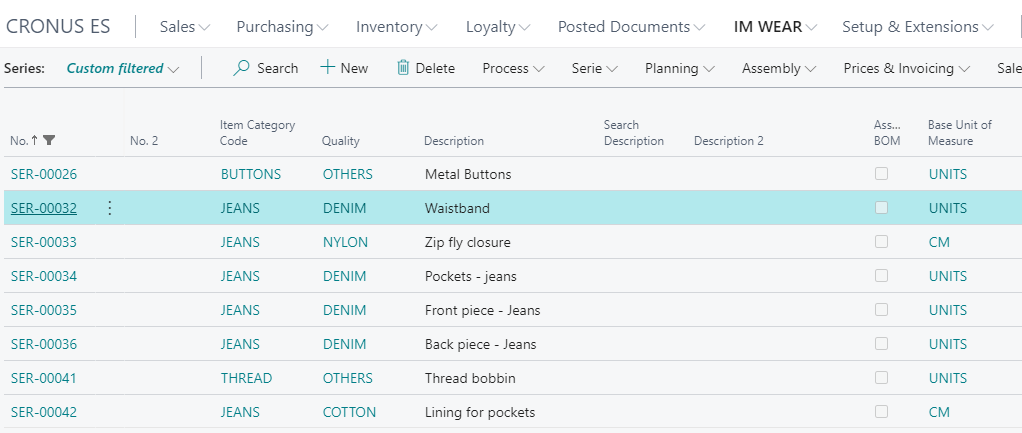
Parent Items for Raw Materials
Firstly we can create all the series for Raw Materials
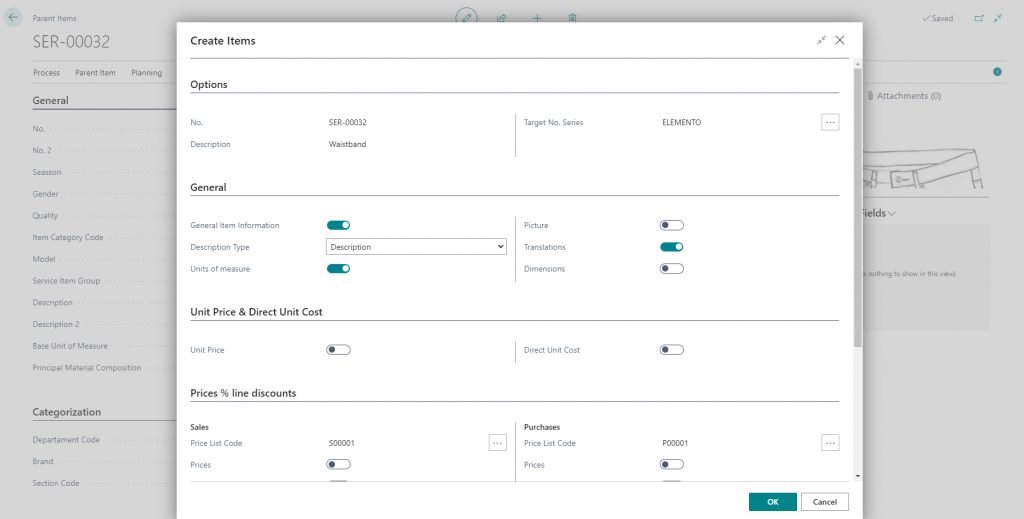
Create colors and sizes for each component:
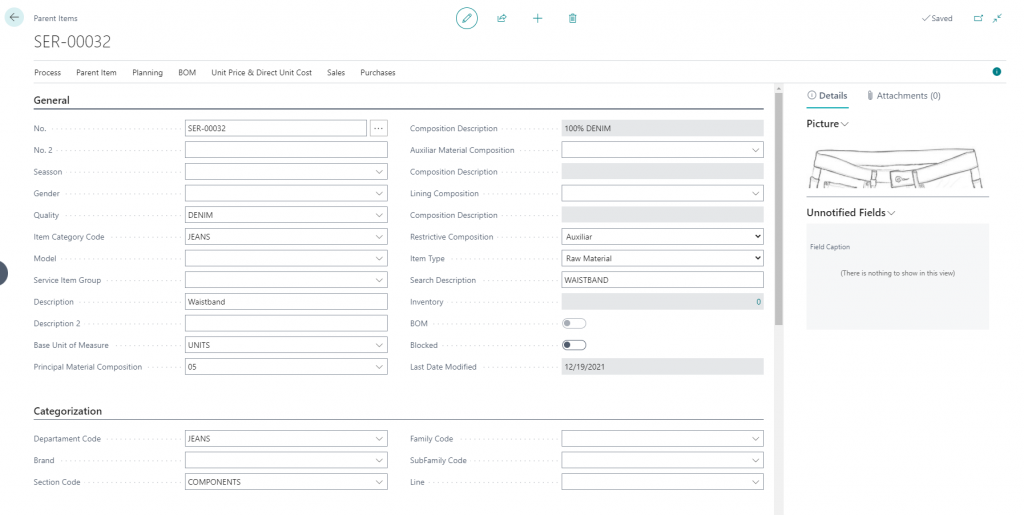
Create Color and Size for the parent item

And create the child items
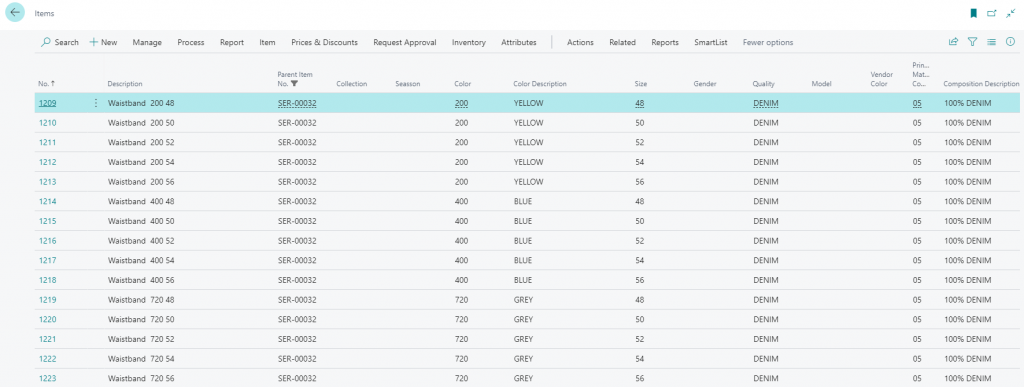
Use the Serie/ Item menu to access the child items list
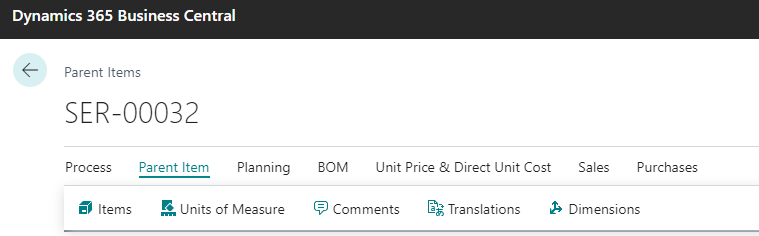
Create Parent Items for Finished Item
Let’s create the card for the finished item
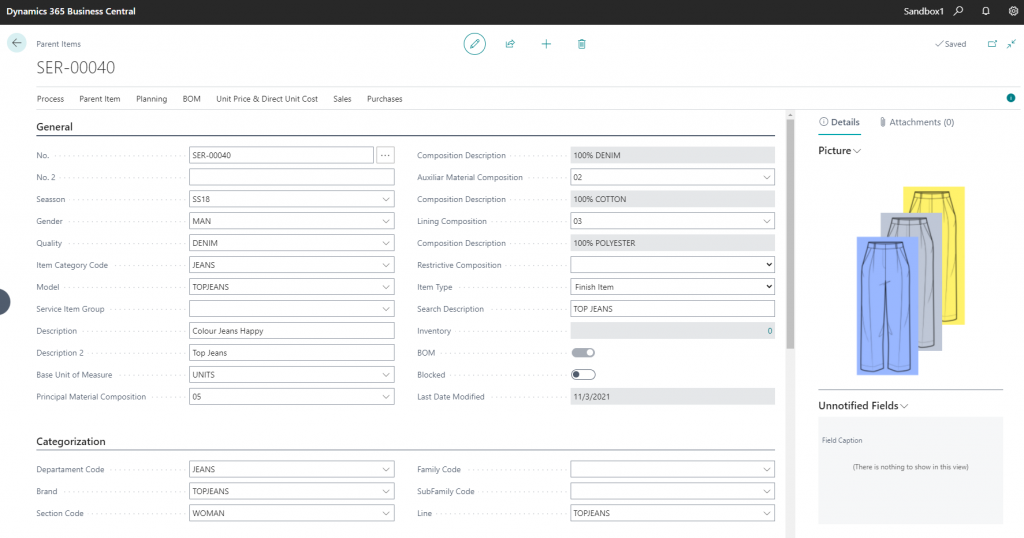
Create color and size

Create the BOM of the child items by clicking on the BOM option of the parent item menu
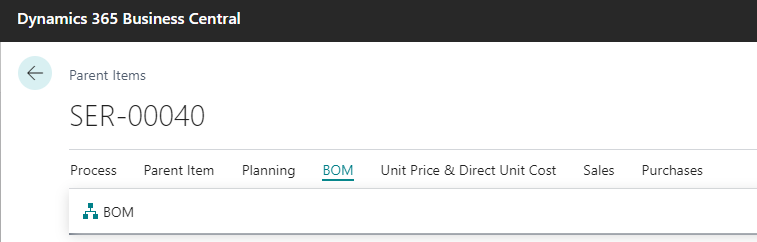
Assing the correspondence from the different components to the Child Item BOMs to be created.
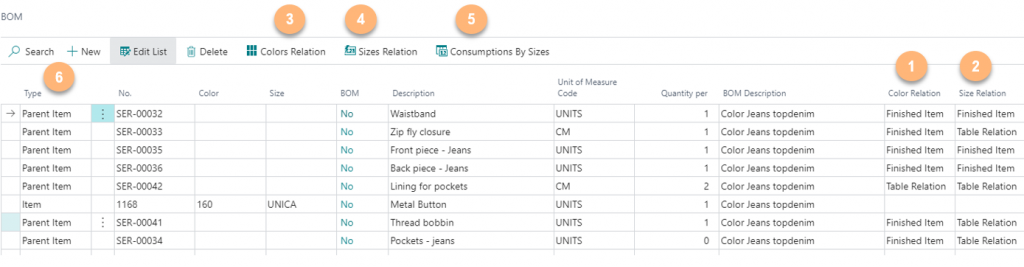
- Color Relation:
- Option Finished Item for raw materials containing exactly the same colors than the Parent Item
- Option Table Relation to create a table relation
- Size Relation:
- Option Finished Item for raw materials containing exactly the same sizes than the Parent Item
- Option Table Relation to create a table relation
- Colors Relation: To create color table relation
- Sizes Relation: To create size table realtion
- Consumption by sizes: To set fixed consumptions for raw materials
- Type: To choose a raw material type
- Parent Item
- Item
And create the child items
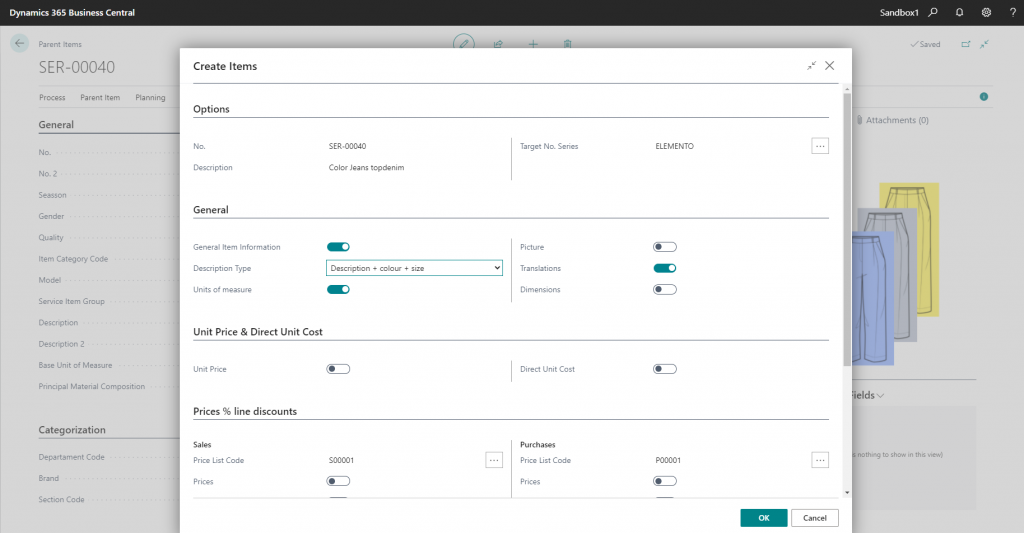
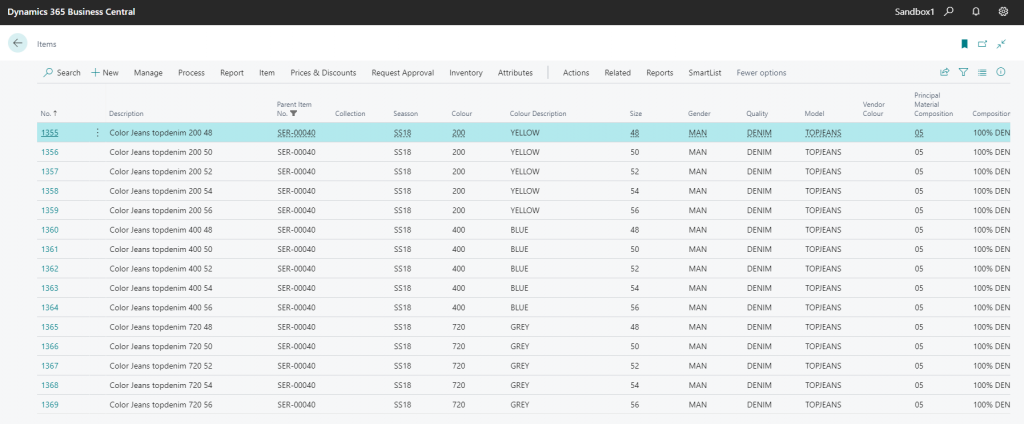
If BOM option is set, Bill of Materials for Manufacturing or/and Assembly will be created or updated